
Understanding the problem
A phone in the cab that is also a legal record
- 01
The background
Commercial drivers in the US work under FMCSA Hours of Service rules: 11 hours of driving inside a 14‑hour on‑duty window, a 30‑minute break after 8 hours of driving, and a 60/70‑hour weekly cycle. An Electronic Logging Device records every minute, and an inspector can ask to see the log at any roadside stop.
- 02
The problem
Compliance lived in separate legacy apps. Duty status, clocks, logs, unassigned driving and vehicle inspections each had their own entry point, and several tools were missing from the new app’s structure altogether. Drivers had to hunt for the one number they care about: how long they can still drive.
- 03
The opportunity
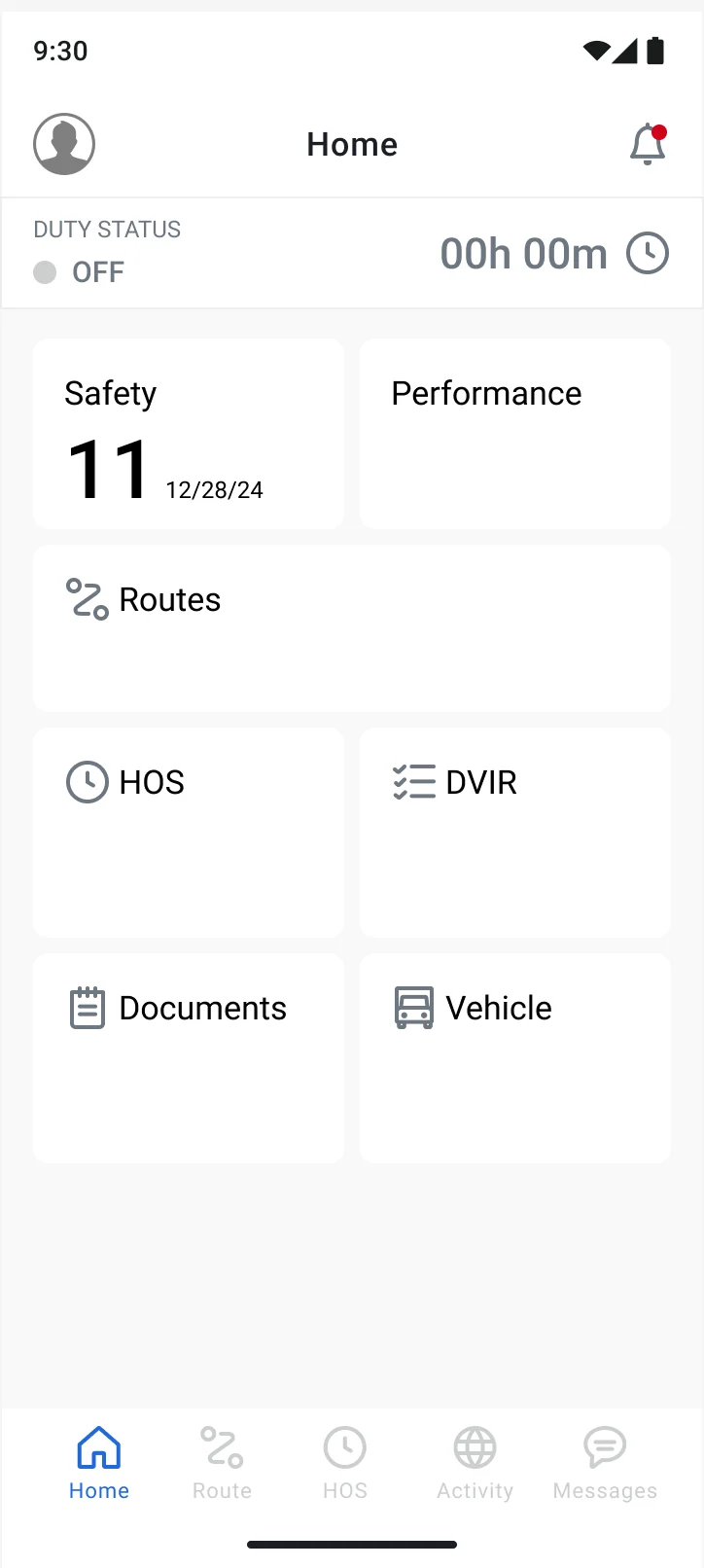
Bring Log, HOS, DVIR and the compliance settings into one Compliance hub in the new driver app, and put the live duty status and vehicle connection on the home dashboard, so the most frequent actions take one tap.
How might we
How might we let a driver see how much time they have left, change their duty status and fix their log in a few taps, without ever putting their compliance at risk?
Understanding drivers and the rules
Turning regulations into product behavior
Research approach
- Mapped the legacy driver apps and the fleet product catalog to find the compliance tools missing from the new IA.
- Walked the HOS requirements with product: duty statuses, the four clocks, personal conveyance, yard moves and the short‑haul exemption.
- Reviewed the ELD rules for unidentified driving, log edits and daily log certification.
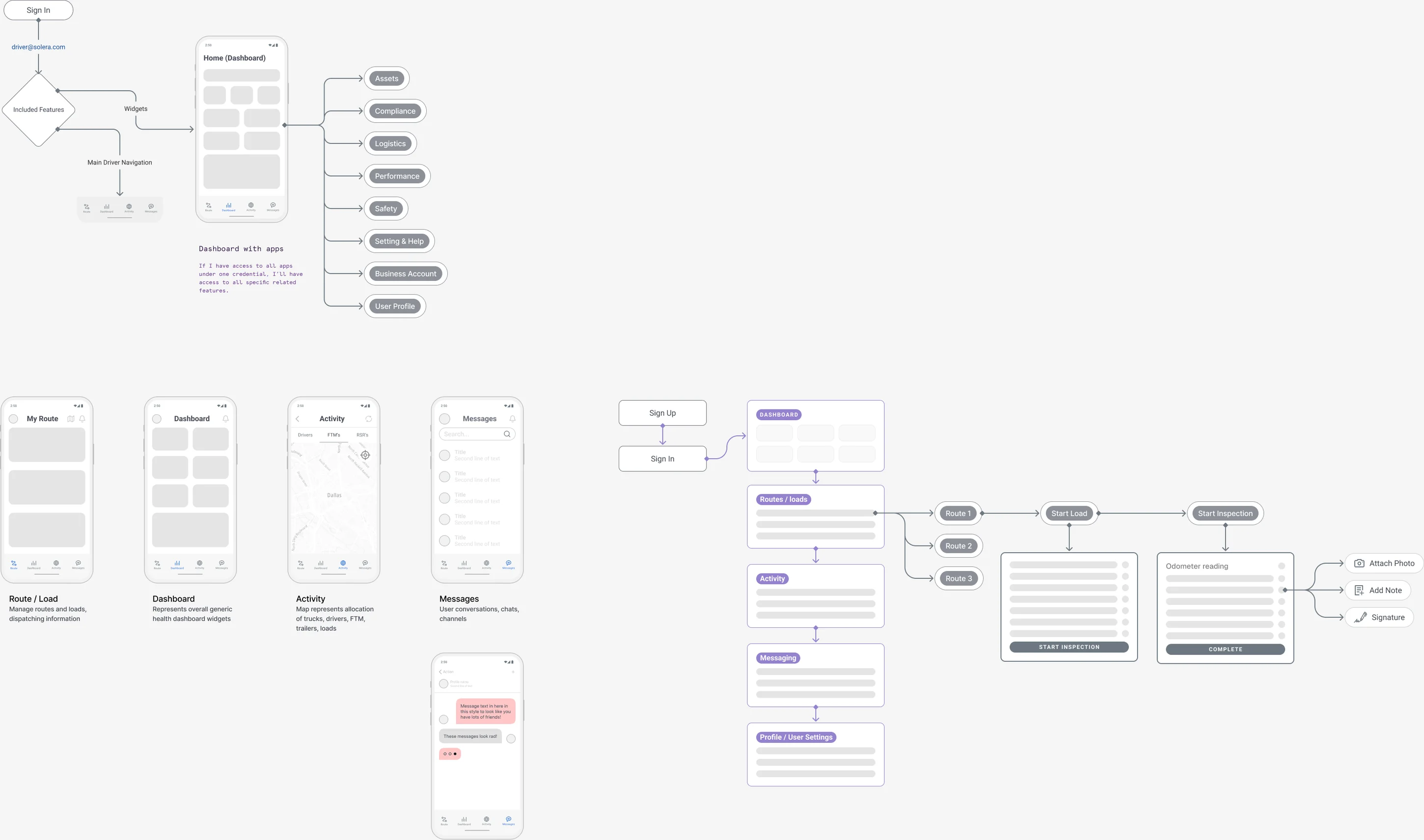
- Built the app IA flow and Android screen templates before designing any compliance screen.
Key insights
1 · “How long can I still drive?” is the question
Drivers open the app for time left, so the clocks lead and every clock names the rule it counts against.
2 · The truck changes what the app can do
Duty status and clocks only make sense once the phone is paired with the vehicle’s ELD, so the connection state comes first.
3 · Unassigned driving can’t be ignored
Trips the ELD recorded without a driver must be claimed or rejected; whatever is left goes to the back office for review.
4 · Inspections are part of the shift
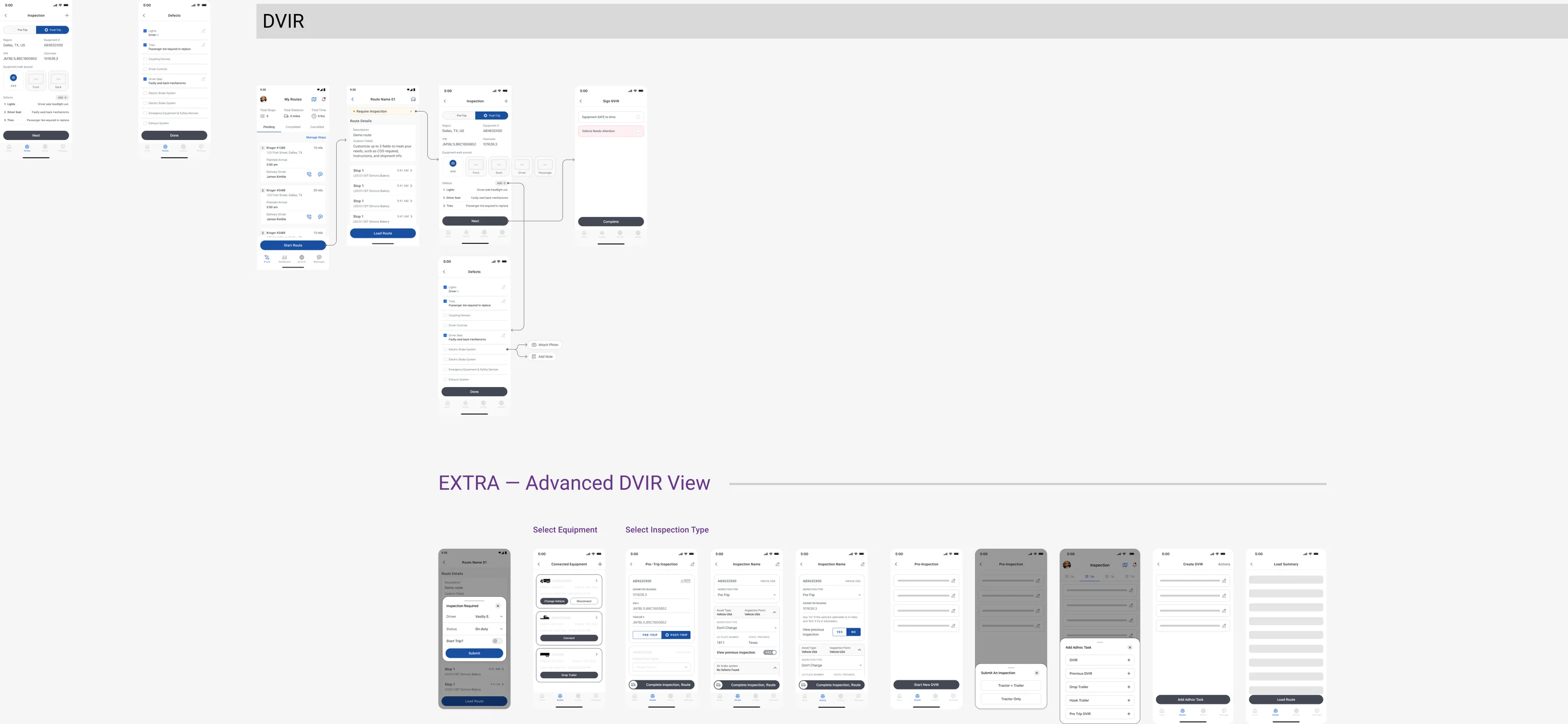
A pre‑ or post‑trip DVIR belongs to the unit and trailer in use, lists defects and ends with the driver’s signature.
Defining the experience
One hub, four tabs, the clock always in reach
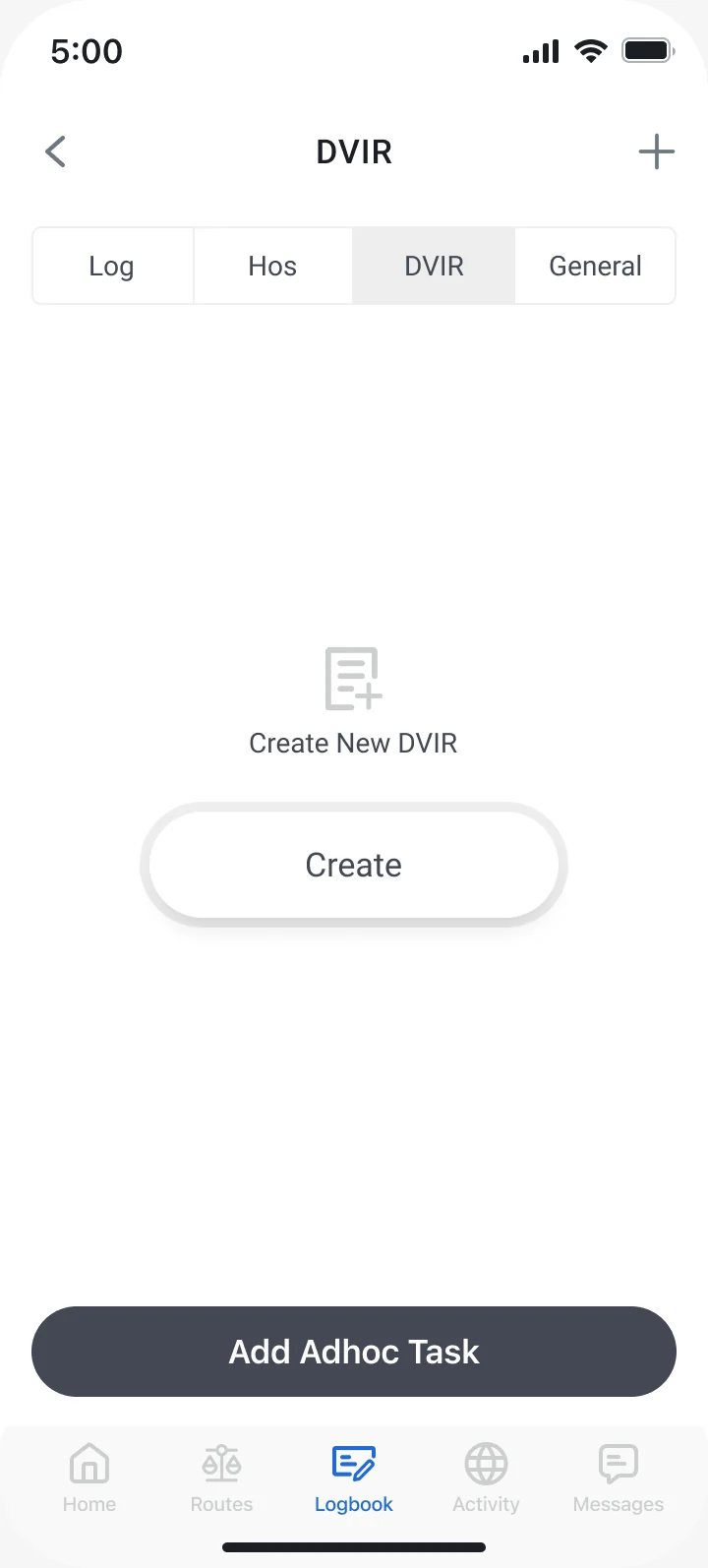
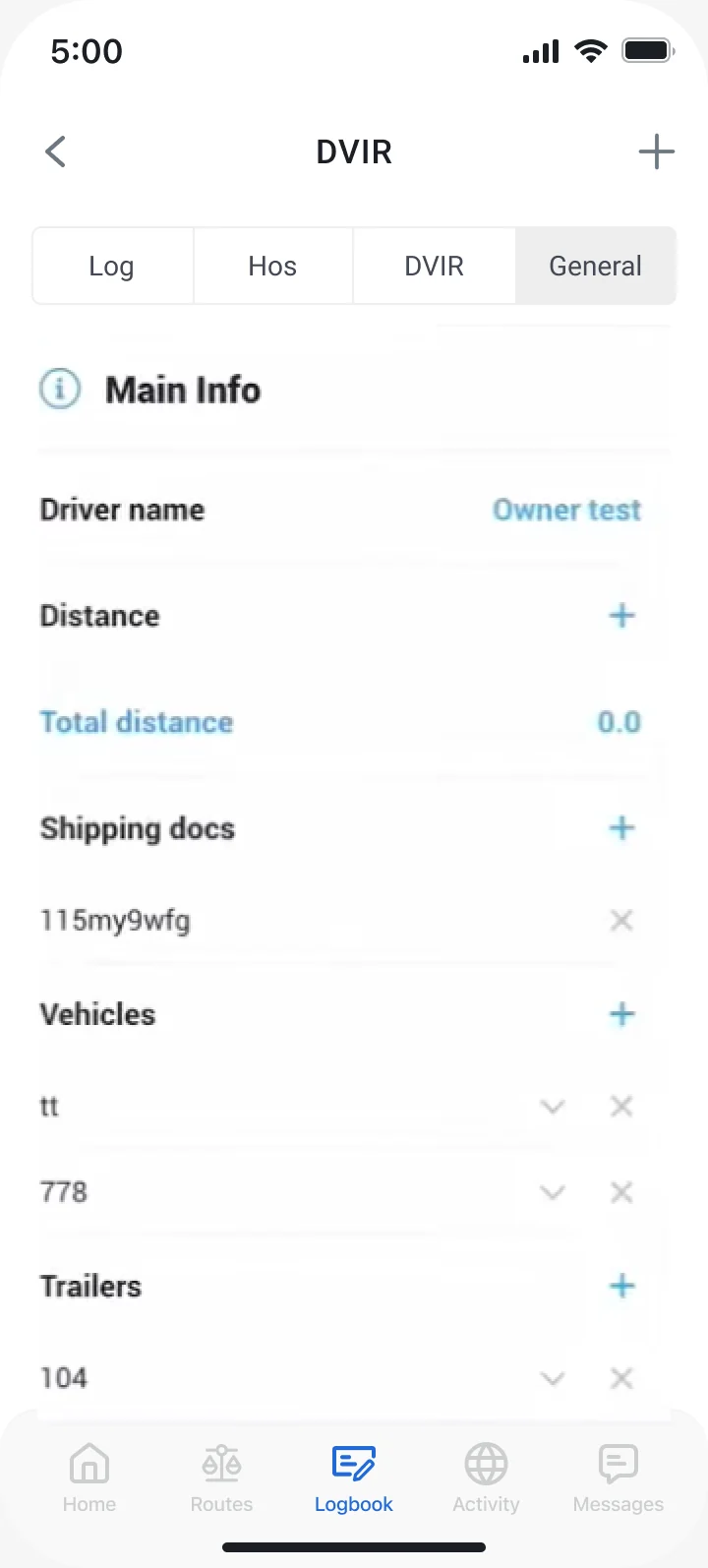
Instead of separate apps, compliance becomes one hub with four tabs: Log, HOS, DVIR and General. The home dashboard carries the live duty status and the vehicle connection, so the actions a driver repeats all day never need the hub at all.
Primary journey · start of a shift
- Sign in
- Home dashboard
- Connect vehicle
- Change duty status
- HOS clocks
- Review log
- Certify log
Branches designed for each step
- Vehicle not connected
- Unidentified trips
- Unassigned activity
- Personal conveyance
- Yard move
- Pre‑trip / post‑trip DVIR
- Defects found
- Drop / hook trailer
Principles & constraints
Glanceable first
Large numbers, one color per clock and the rule written under it, readable at arm’s length in a cab.
One status everywhere
OFF, SB, D and ON keep the same colors and labels on the home dashboard, the logbook and the HOS tab.
No dead ends
Every warning, from unidentified trips to unassigned activity, opens the screen that resolves it.
System first
The Log, HOS, DVIR and General tabs share the same header, tab bar, list rows and bottom action, on Android and iOS.
Key design features and decisions
Five moments that carry a driver’s day
FEATURE 01
Duty status, one tap from home
- User need
- A driver changes duty status many times a shift, often standing at a dock or a fuel pump.
- Design approach
- Home shows the current status and how long it has run. Tapping it opens the Logbook: four large status buttons, today’s graph and the history right below, so the driver sees the change land in the log.
- Four status buttons with an icon, a color and a full label
- Personal conveyance and yard move as options of a status, not new statuses
- Today’s graph and history on the same screen
FEATURE 02
Four clocks, each with its rule
- User need
- A driver needs the time left before a violation, not a log to calculate it from.
- Design approach
- The HOS tab shows Break, Drive, Shift and Cycle as cards that fill as time runs out, each with the rule it counts against underneath (8 Hr Rest Break, 11 Hr Driving, 4 Hr On Duty), and the time to the next violation in red.
- The result
- The answer to “how long can I still drive?” is the first thing on the screen.
FEATURE 03
Unidentified trips, resolved from the log
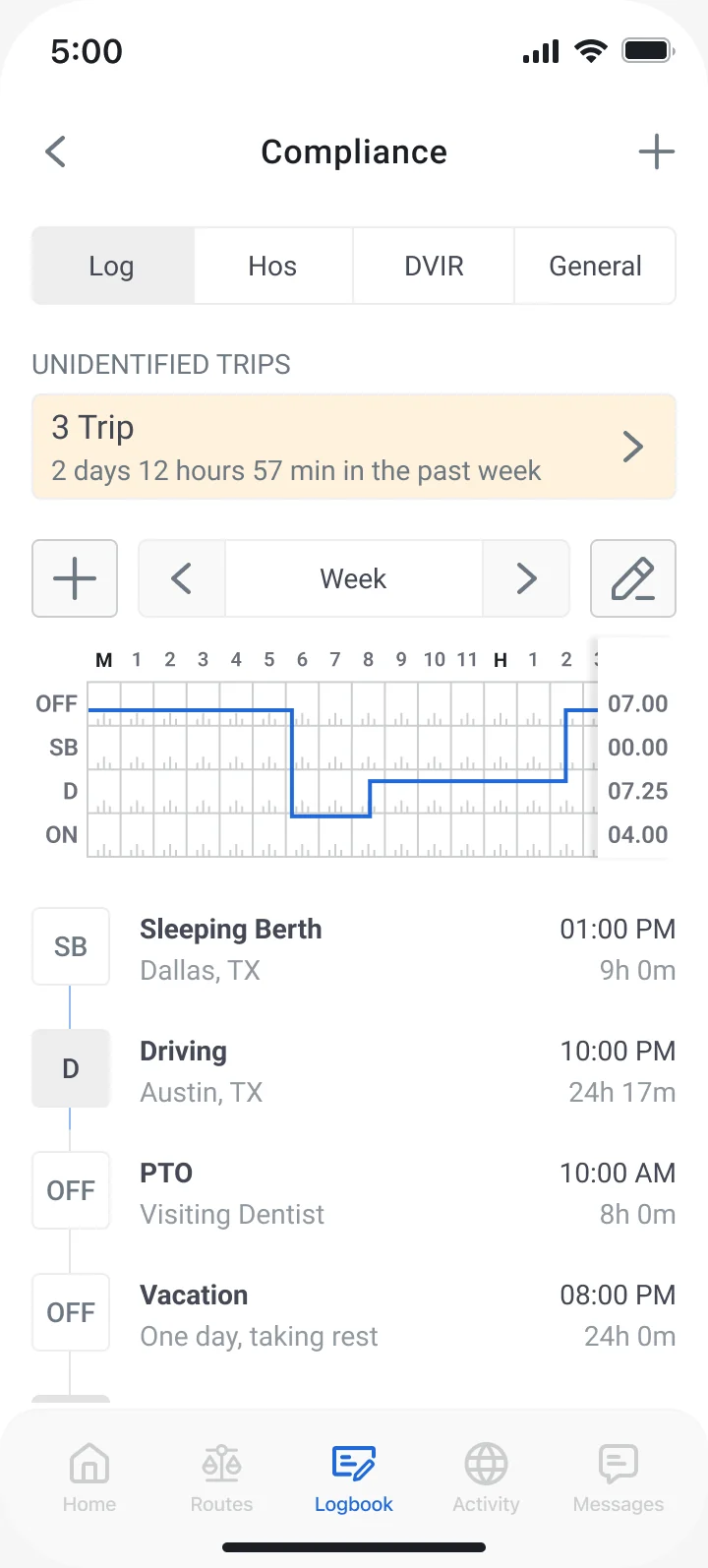
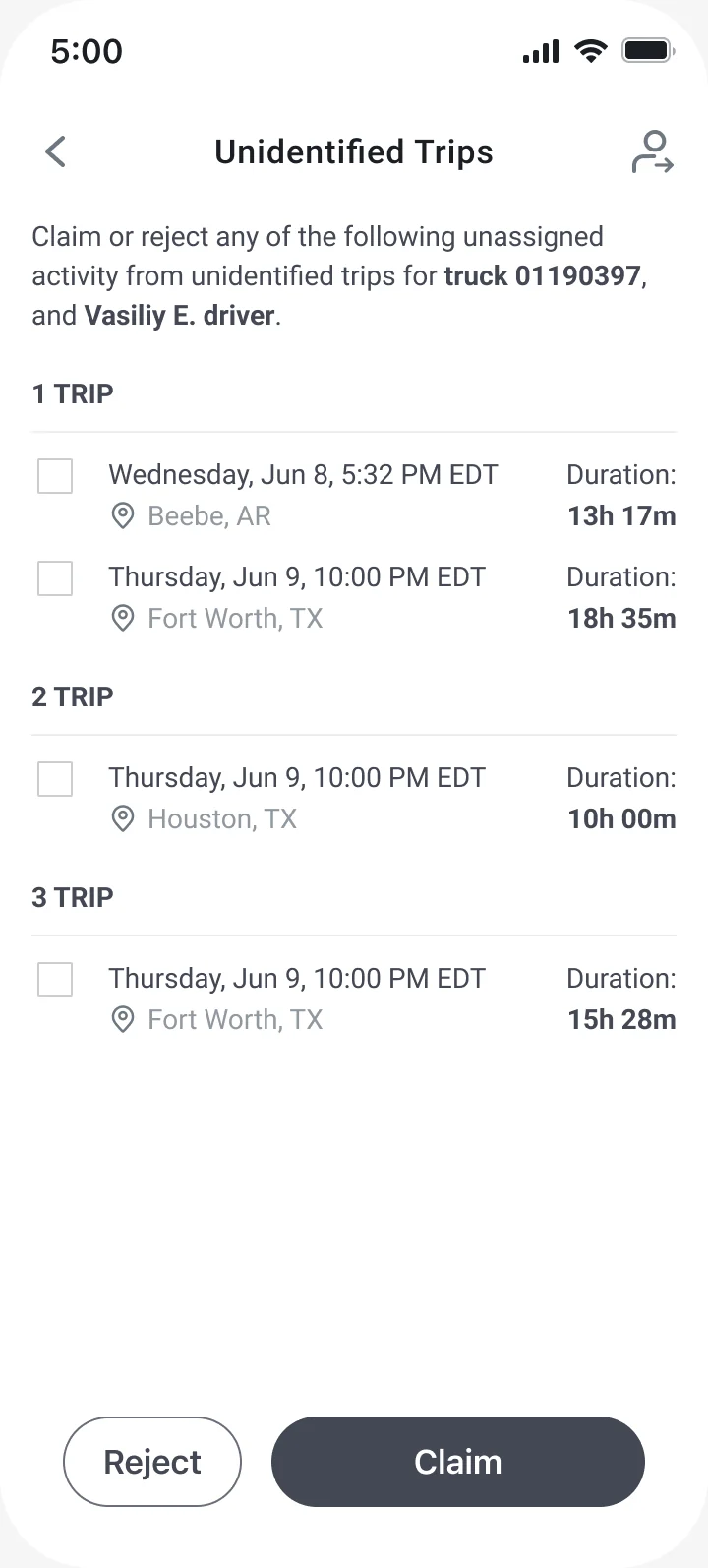
When the truck drove without a driver logged in, the Log tab opens with a banner: “3 Trip, 2 days 12 hours 57 min in the past week”. The list groups trips by day with time, place and duration; the driver selects the ones that were theirs and claims them, or marks the rest “Not mine”.
Log
Unidentified trips
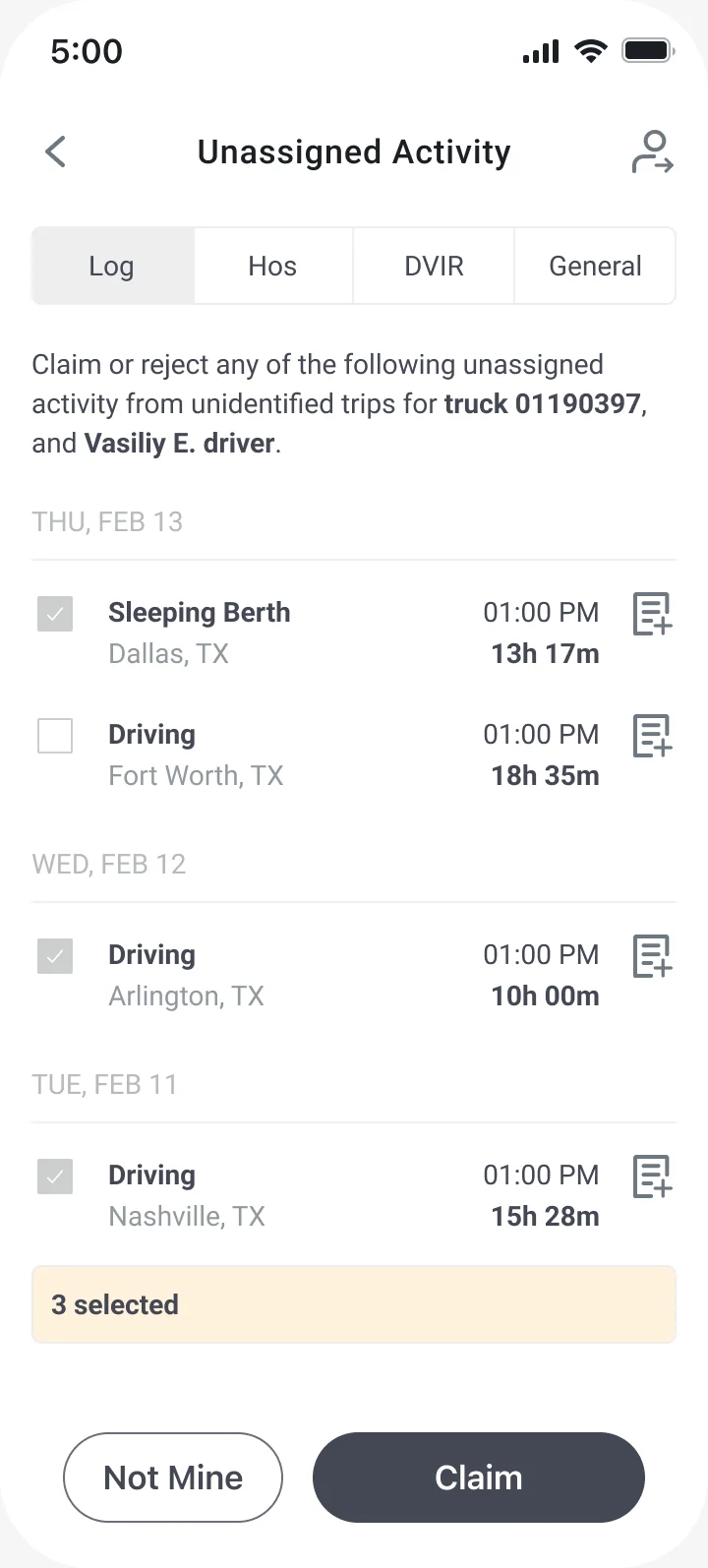
Select & claim
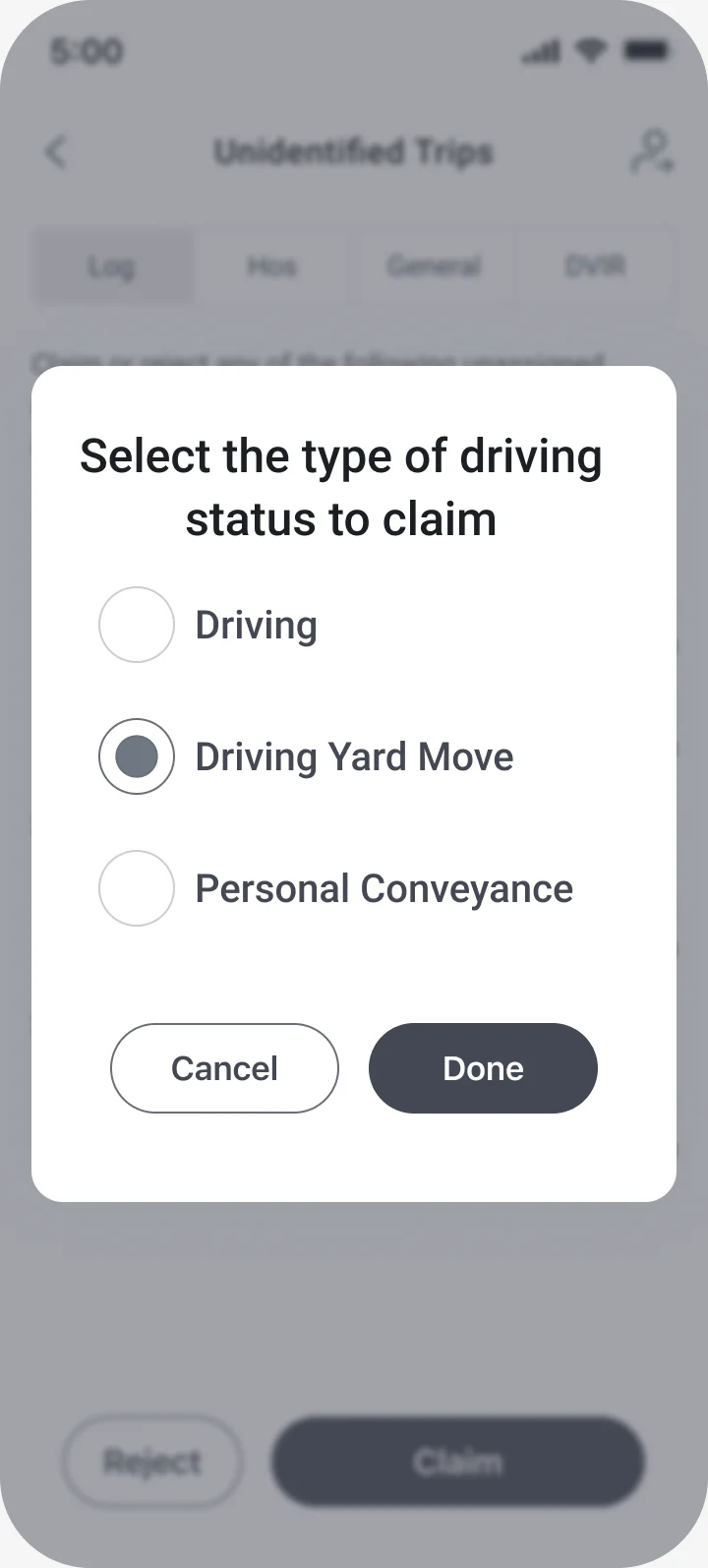
Claim as
FEATURE 04
A DVIR that starts from the truck
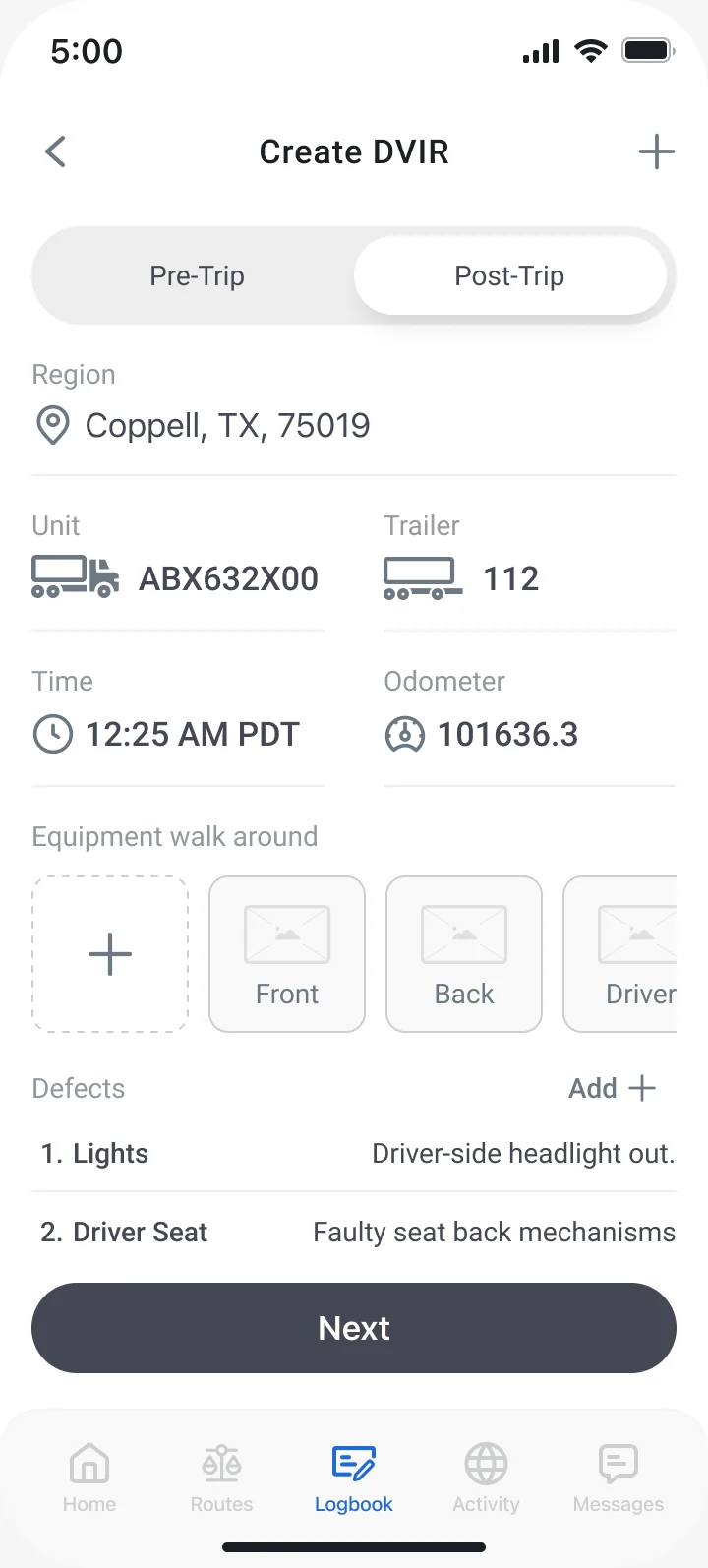
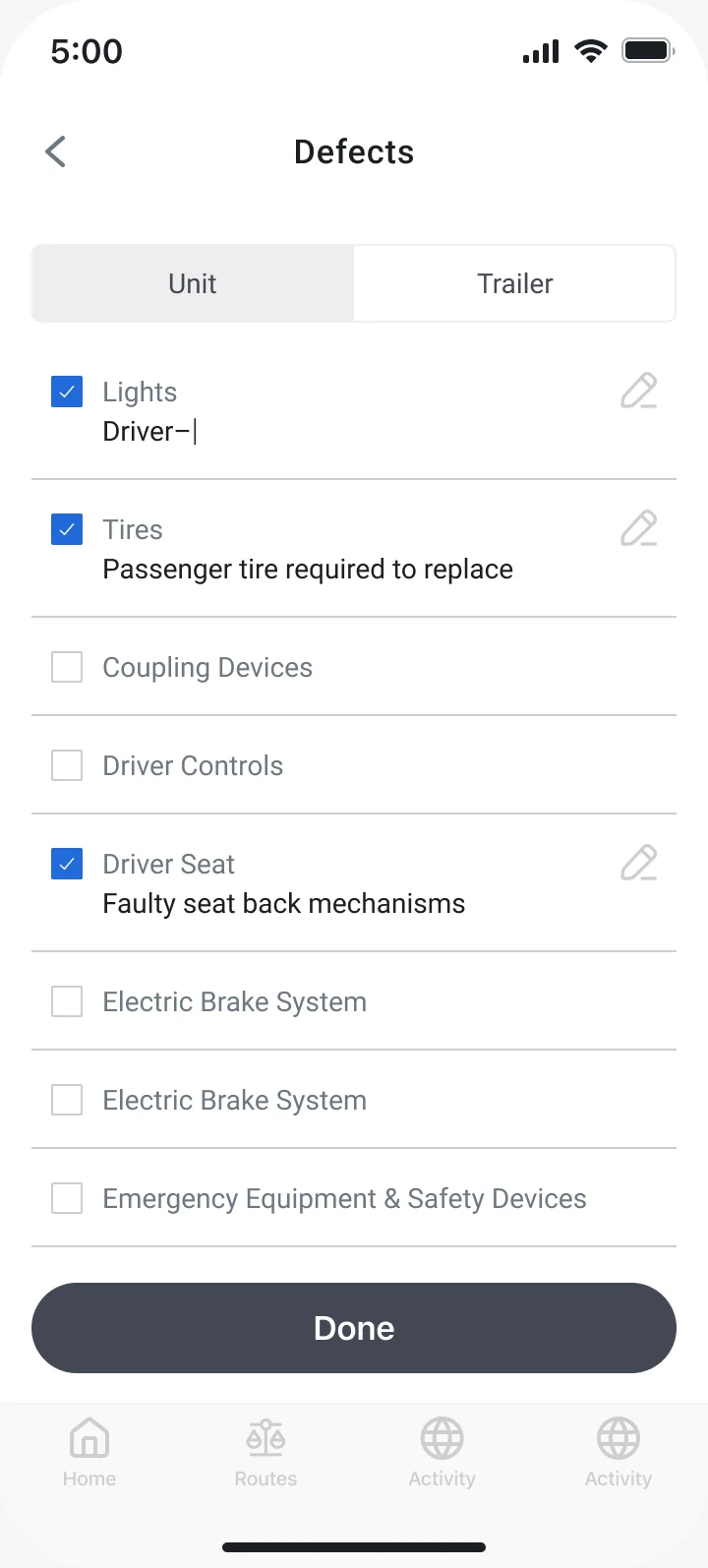
Pre‑trip or post‑trip, the inspection fills in the region, unit, trailer, time and odometer from the connected vehicle. The driver walks around the truck, adds photos and picks defects by system for the unit and the trailer, each with a note.
FEATURE 05
Trucks and trailers in two taps
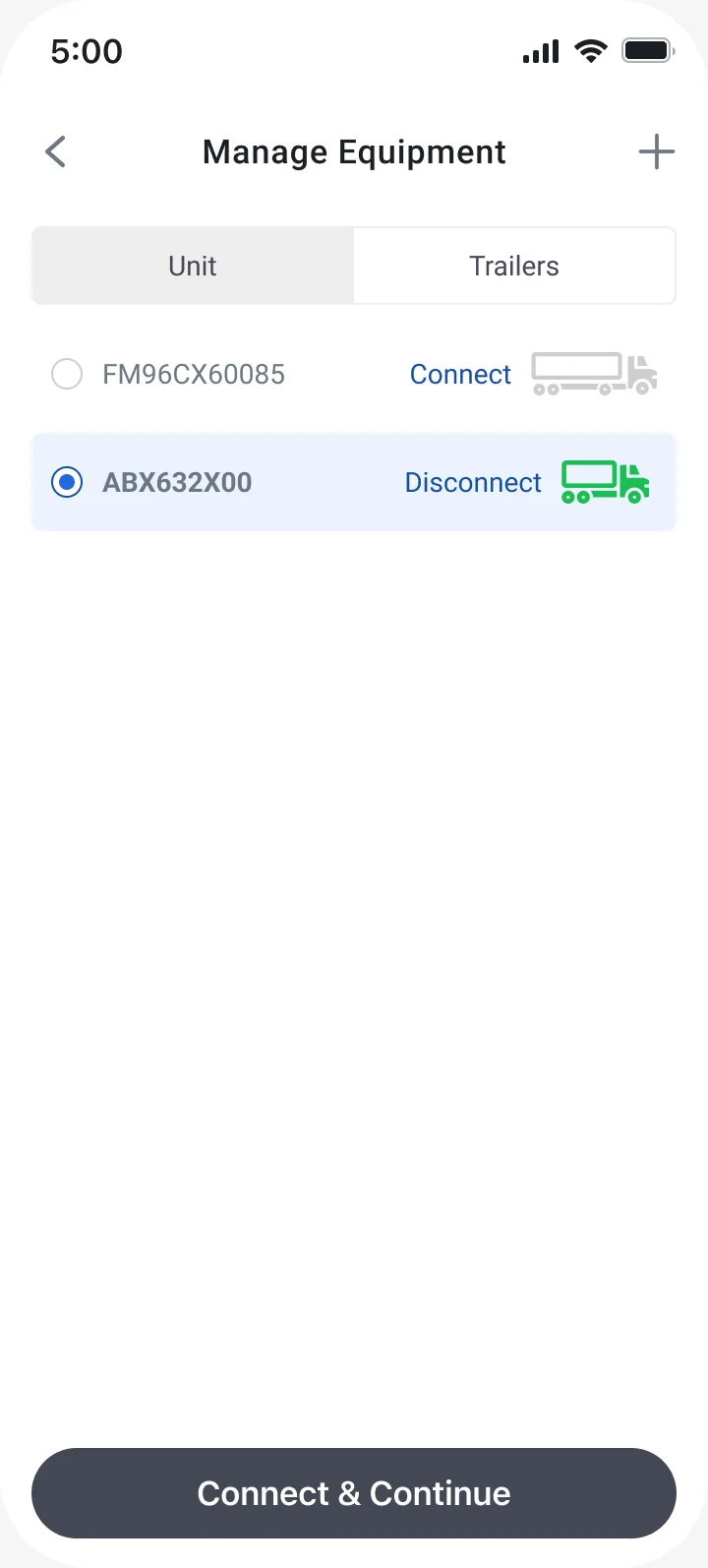
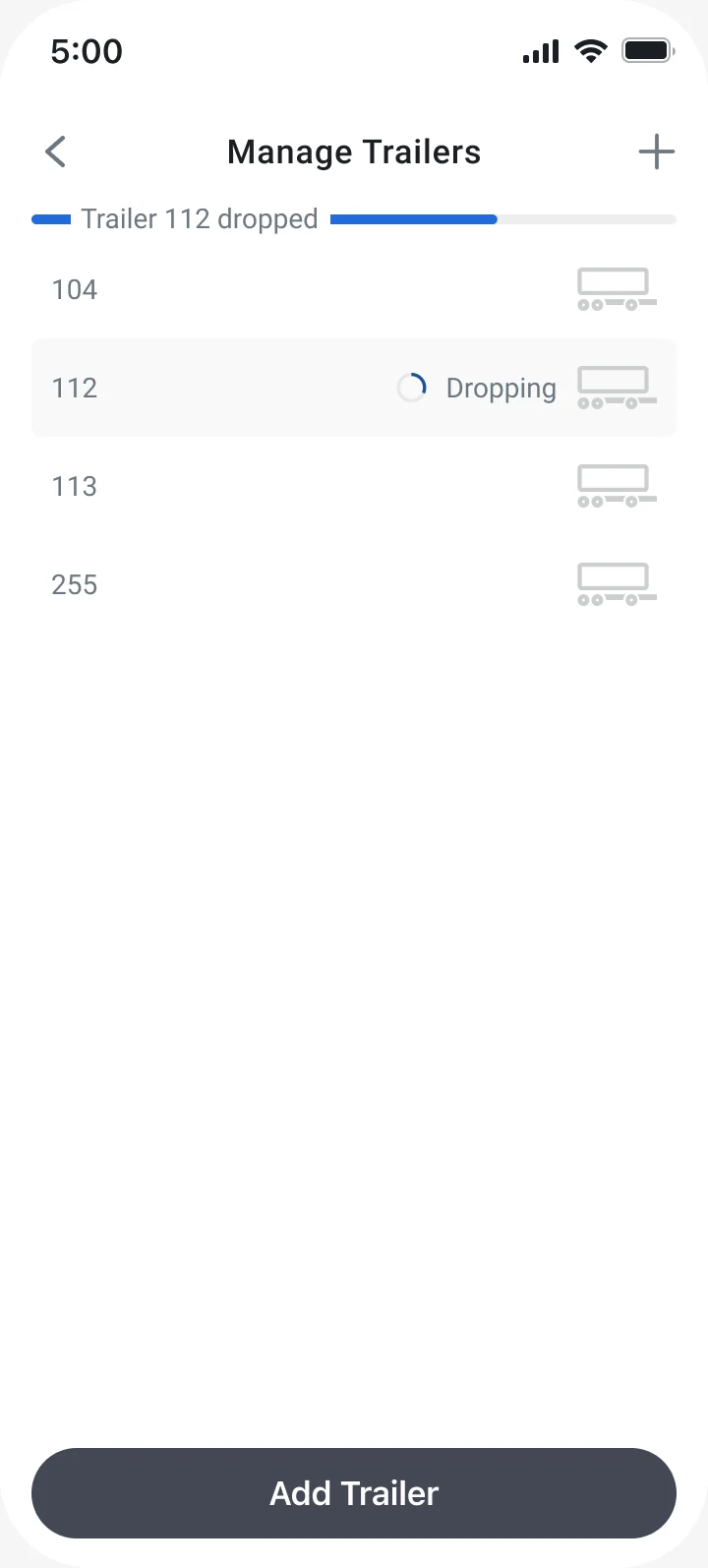
Manage Equipment shows the units the driver can use with a Connect or Disconnect action next to each. Trailers are dropped and hooked from the same list, with the progress shown in place.
Testing and refinement
Designing for the trips nobody logged
Every flow was reviewed with product, compliance and engineering on the working board, with open questions kept as notes next to the screens: “Prompt the user to go On‑Duty?”, “Does the user need to annotate at this stage?”, “Should Duty Status and General settings be relocated?”. Each answer became a state in the flow, and the unassigned driving flow got the most of them.
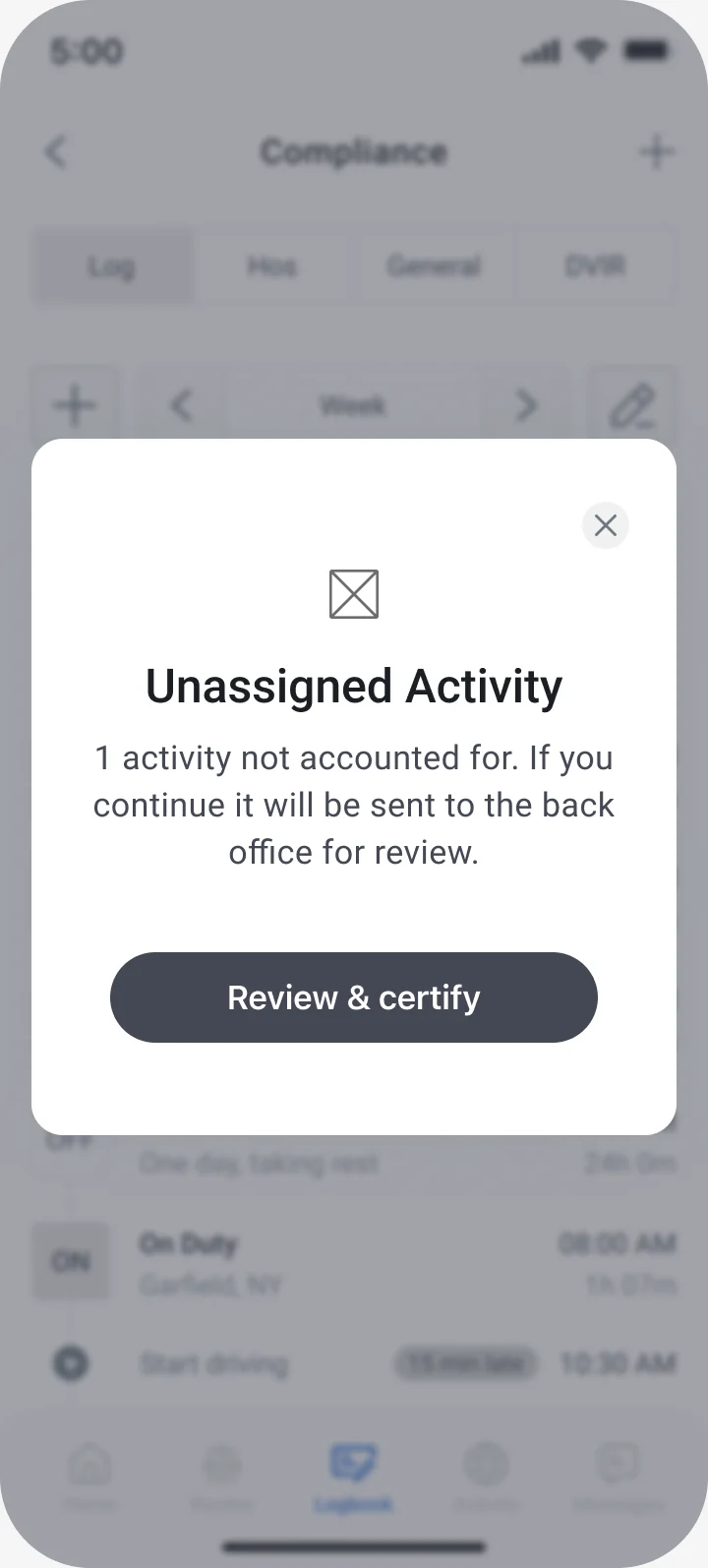
Nothing slips through. Leaving with an activity still unaccounted for says so, and sends it to the back office for review.
Claim with intent. Claiming a trip asks what it was: driving, a yard move or personal conveyance.
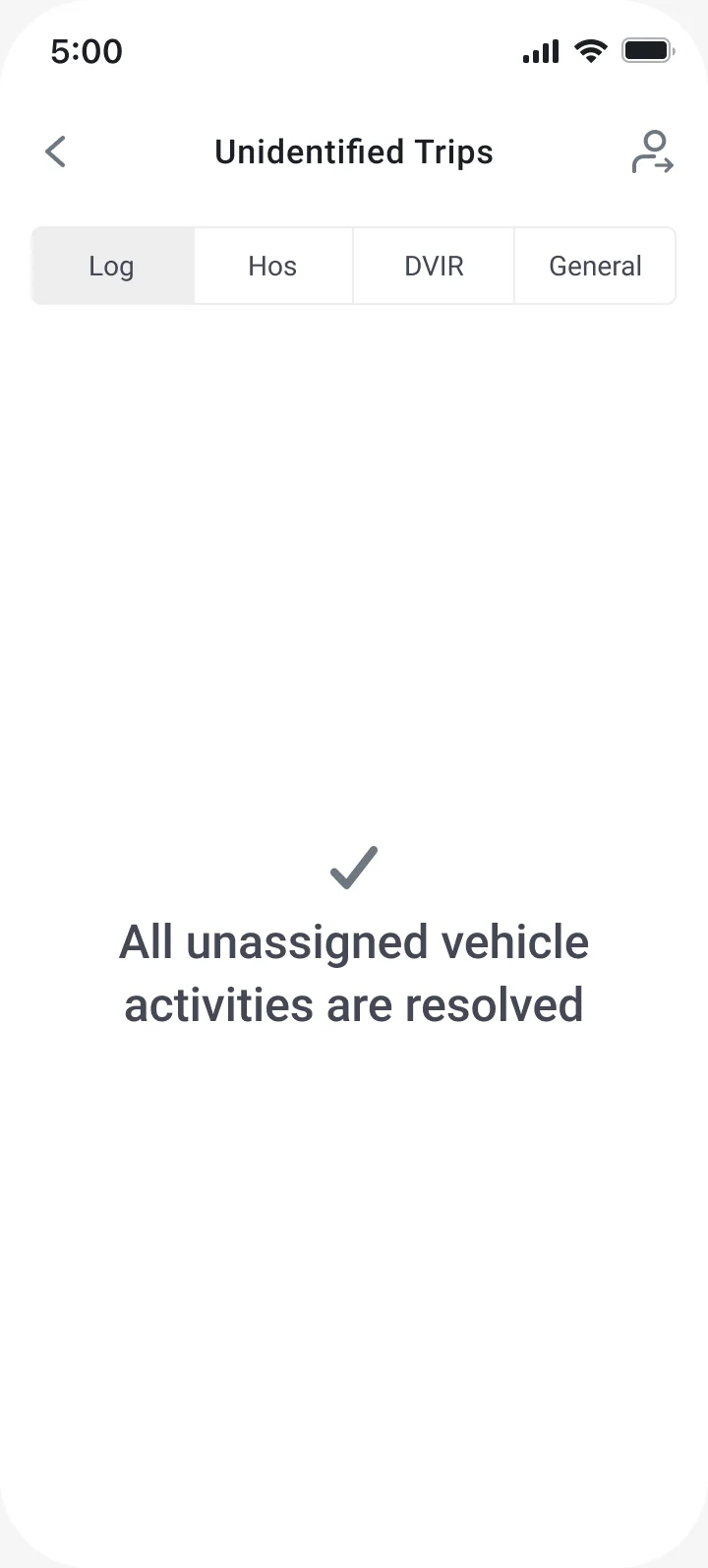
A clear finish. Once every trip is claimed or rejected, the list ends on a resolved state instead of an empty screen.
Iteration log
Before: The clocks were progress rings. They looked good, but the rings read as charts, the time sat inside small circles and the five rings didn’t fit a row of status buttons below.
After: Cards that fill as time runs out, in the same colors as the duty statuses, with larger numbers and the rule under each card. The time to violation got its own red card, so it can’t be missed.
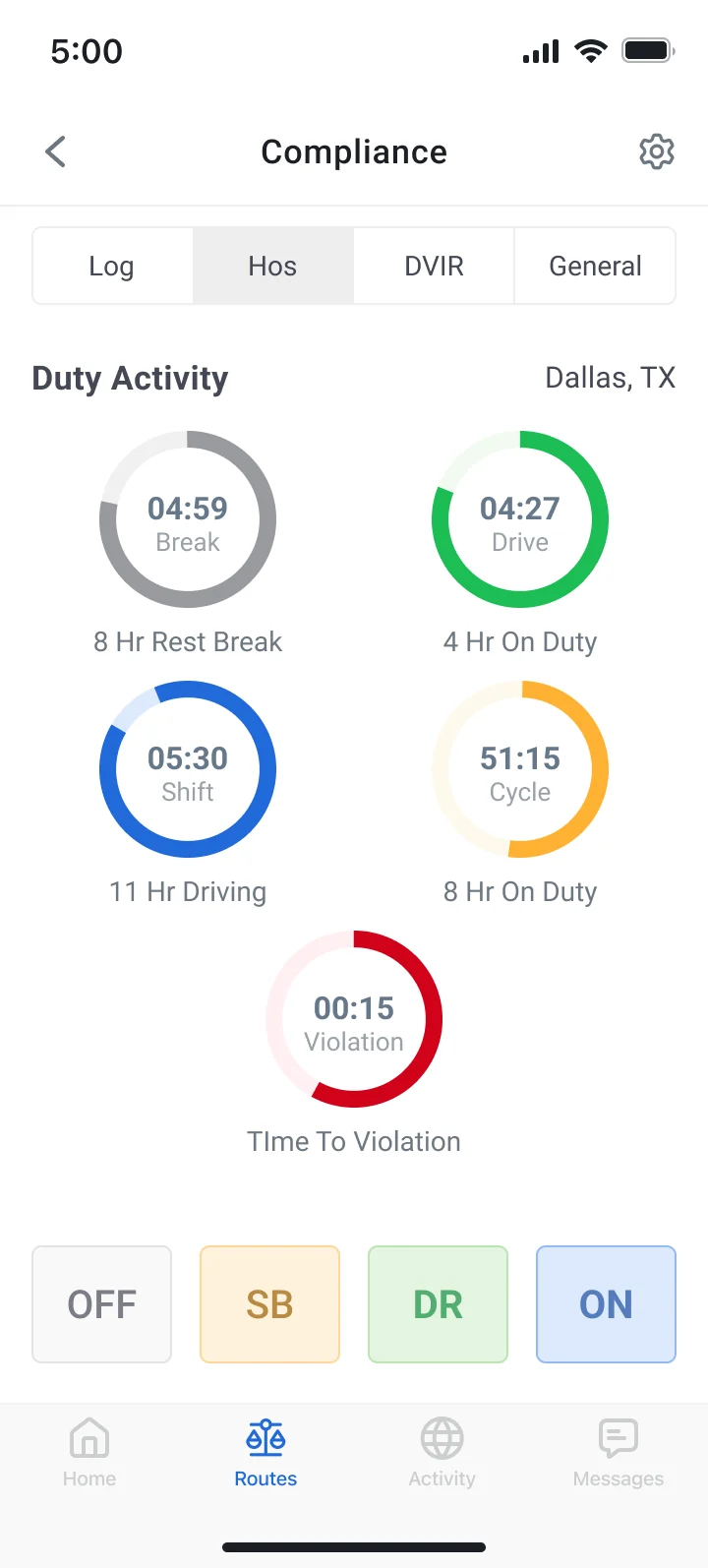
Before: rings
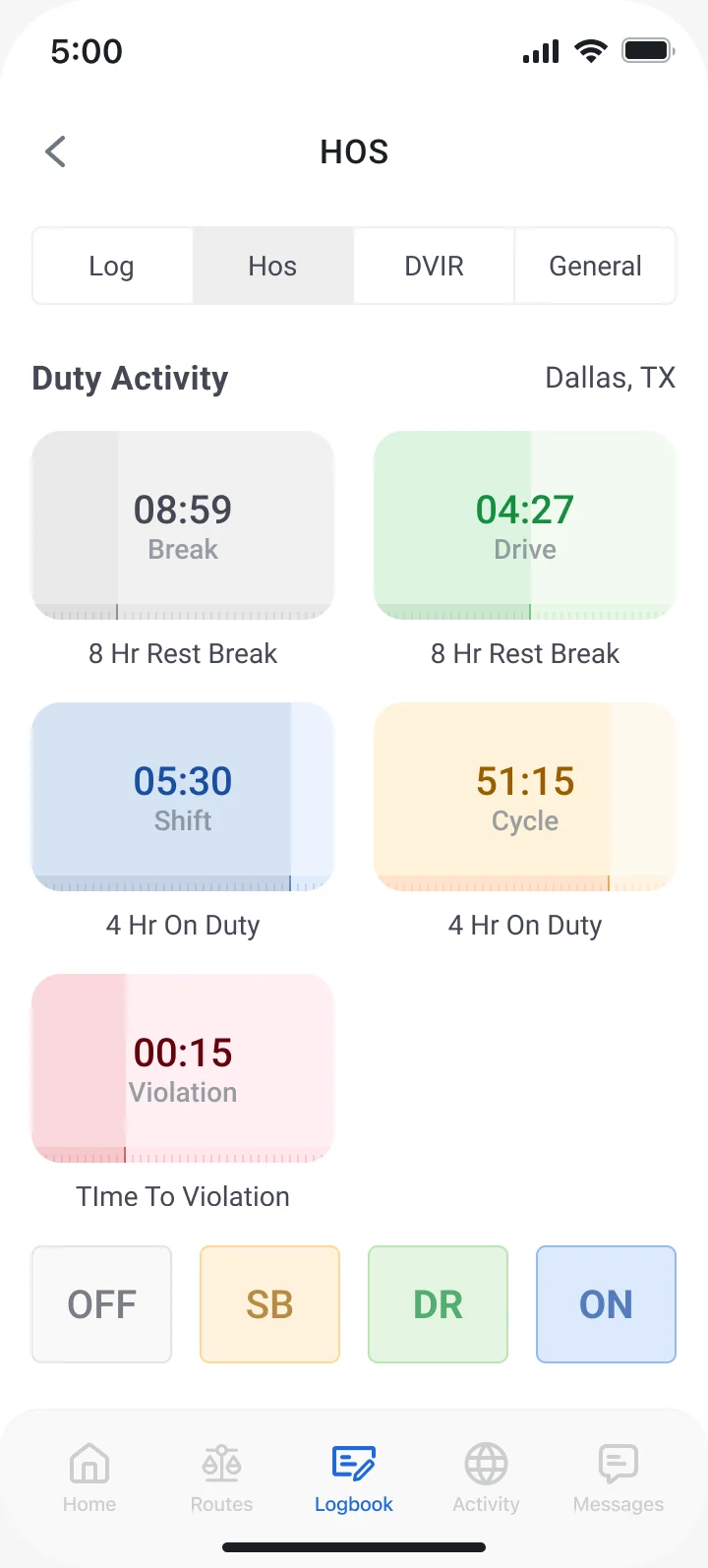
After: cards
Bringing everything together
From the home dashboard to a signed inspection
Driver app
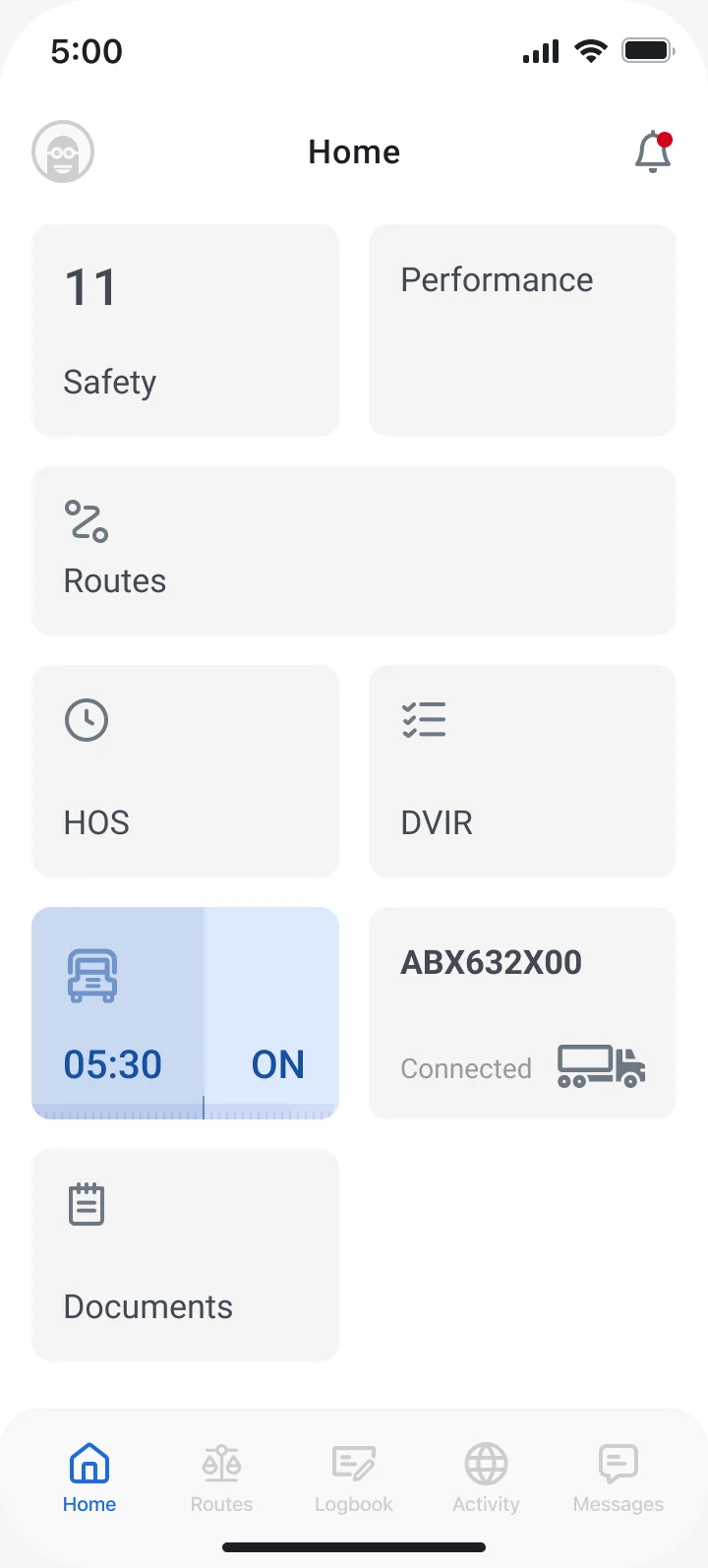
Home
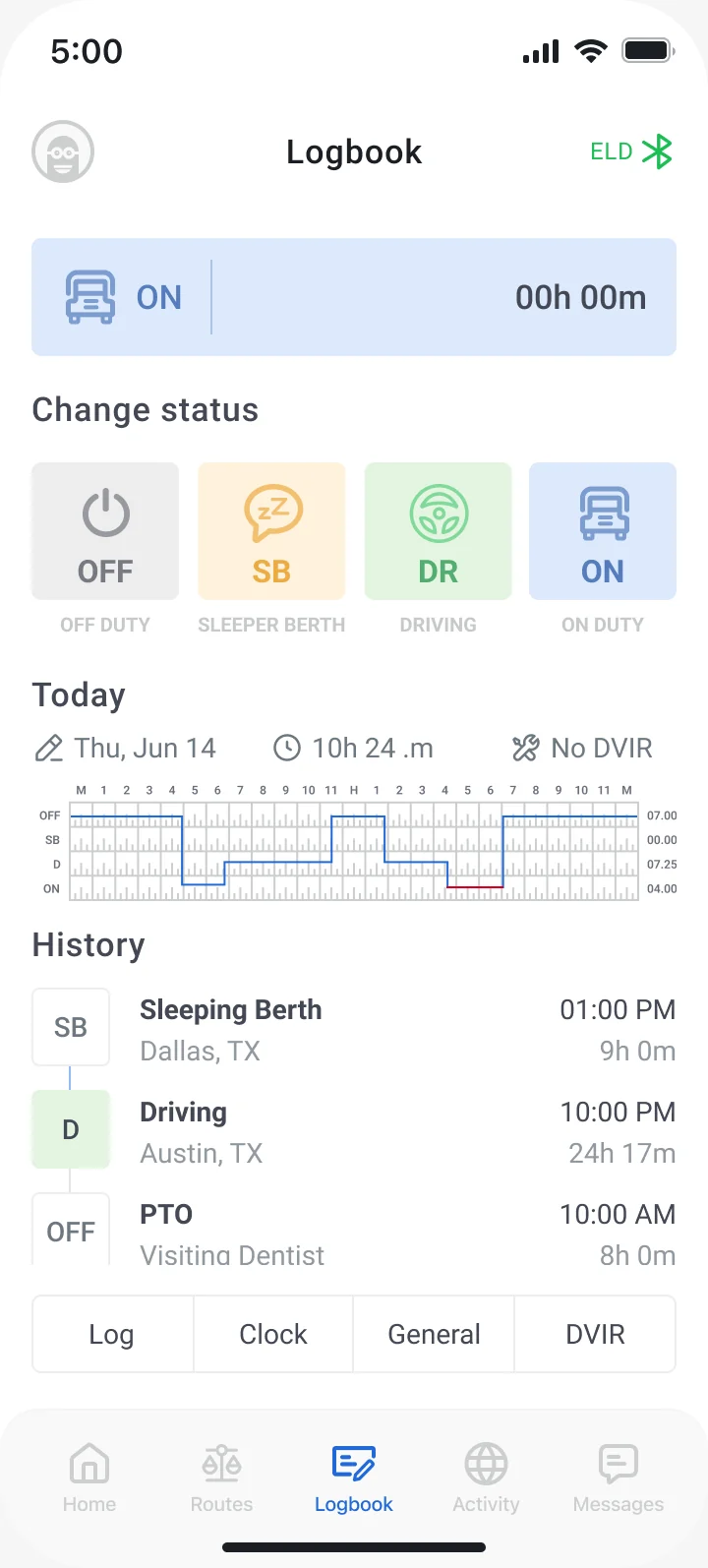
Logbook
DVIR
General
Impact and reflection
What shipped, and what I’d take forward
- The outcome
One compliance hub
Log, HOS, DVIR and General designed end to end, with the duty status and vehicle widgets on home, unidentified and unassigned driving flows, and truck and trailer management, in connected and not‑connected states.
- The impact
Metric
How success would be measured: fewer HOS violations, fewer unassigned driving minutes sent to the back office, faster duty status changes and more DVIRs completed in the app.
- What I learned
Rules first, then screens
Every screen in this app is a regulation in disguise. Writing the rule under each clock and naming each status the same way everywhere did more for clarity than any layout change.
With more time I would…
I’d test the flows in the cab with drivers at real docks and fuel stops, measure how long a duty status change takes, and check the tap targets with gloves and at night. I’d also design the roadside inspection mode, where the driver hands the phone to an officer.